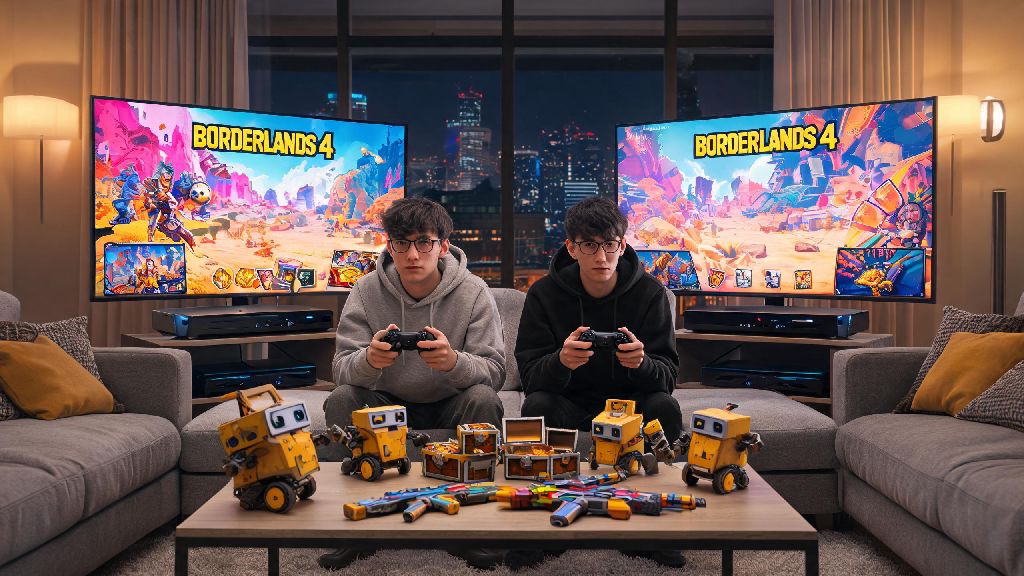
If you’re a Borderlands fan who loves huddling up with a friend on the couch to farm legendaries and laugh at Claptrap’s terrible one-liners, you’re probably wondering exactly how Borderlands 4 split screen works, right? I’ve spent the past two weeks testing every platform’s local co-op mode, troubleshooting weird frame drops, and digging up all the little hidden settings that make split screen play way more enjoyable. This guide breaks down everything you need to know to jump right into co-op looting without wasting 20 minutes fumbling through menus.
How to Set Up Borderlands 4 Split Screen on All Supported Platforms
The setup process is mostly the same across all devices, but there are a few platform-specific quirks you should know about before you start. First, make sure you have at least two compatible controllers paired to your device, since keyboard and mouse support for second players is not available on any platform right now.
For PS5 and Xbox Series X/S users, the process is simple: launch the game, wait for the main menu to load, and have the second player press the X or A button on their controller. They’ll be prompted to either log into their own account or play as a guest, then they can select an existing character or create a new one from scratch. PC split screen only works with controller inputs, so you won’t be able to use a keyboard for the second player even if you have one plugged in. If you’re playing on a last-gen PS4 or Xbox One, you’ll be limited to 2-player split screen only, while current-gen consoles and PC support up to 4-player local co-op if you have enough controllers.
Once both players are in the lobby, you can adjust the split orientation in the settings menu before you load into the game. Most players default to horizontal split, but vertical split works great if you have a wide 4K TV and want more field of view for each player.
Key Settings to Improve Your Borderlands 4 Split Screen Experience
There are a handful of small settings tweaks that will make your co-op sessions way less frustrating, and most players don’t even know they exist. The first one you should adjust is the loot distribution rule, which is set to shared by default for new lobbies.
Shared vs separate loot settings make a huge difference in how fun your sessions are, especially if you’re playing with someone you don’t know super well. Shared loot means any player can pick up any item that drops, which can lead to fights over rare legendaries. Separate loot generates individual drops for each player, so no one can steal your perfect new sniper rifle. I always recommend turning on separate loot for new groups, and only switching to shared if you’re playing with a close friend you trust to share good finds.
Another setting you should adjust right away is the HUD scaling for each player. You can toggle HUD size independently for each player, so if one person is sitting closer to the TV they can use a smaller HUD, and the person on the couch further back can make theirs bigger to avoid squinting at ammo counts. If you’re playing on a last-gen console, turning off dynamic resolution scaling will also fix the blurry visual effect that pops up during big fights, even if it means you lose a few frames per second.
For example, many Borderlands 4 split screen players prefer vertical split when playing on a 4K TV, since each player gets a wider view of combat without losing too much vertical space to see enemies above or below them.
Common Borderlands 4 Split Screen Issues and Easy Fixes
Even with the latest post-launch patches, some players run into small bugs when trying to play local co-op. The good news is almost all of these issues have simple fixes that don’t require you to restart your entire console or reinstall the game. I’ve run into every one of these issues at least once during my testing, so these fixes are all tested and proven to work.
These small fixes work for 99% of Borderlands 4 split screen problems we’ve encountered across all platforms. If you run into a bug that isn’t on this list, the only other fix you’ll likely need is to restart the game once – I’ve never had to reinstall or do anything more drastic to get local co-op working again.
Top Tips for Making the Most of Your Split Screen Sessions
Once you have your settings sorted and all bugs fixed, there are a few small things you can do to make your co-op sessions way more fun for everyone involved. First, try to pick complementary character builds if you’re planning to play through the full campaign together. If one person runs a tank build that can soak up damage, the other can run a support or high-damage build to take out enemies faster, making endgame raids and boss fights way easier to beat.
Split up looting duties when exploring large areas to find more secret chests and side quests faster. If one person checks the left side of the map and the other checks the right, you’ll cover twice as much ground in half the time, and you can always meet back up to turn in quests or take on big enemy camps together. Just make sure to mark any secret chests you find so the other player can grab their loot too.
Don’t be afraid to adjust difficulty on the fly if you’re getting crushed by a boss or finding fights too easy. You can turn the difficulty up or down mid-session without kicking the second player out, so you don’t have to restart the entire fight or waste time going back to the main menu. If you’re playing with a new player who’s never tried a Borderlands game before, start on easy difficulty for the first few hours so they can get used to the mechanics without getting one-shot by every random enemy.
Another small tip: take turns picking which side quests to do. No one wants to spend three hours playing through only the other person’s favorite missions, so rotating who picks the next activity keeps everyone engaged and having fun.
At the end of the day, Borderlands 4 split screen is one of the best local co-op experiences you can get right now, especially if you love looter shooters with tons of humor and endless build customization options. As long as you follow the simple setup steps, adjust your settings for your platform, and fix any small bugs as they pop up, you’ll be farming legendaries and laughing at bad jokes with your friend on the couch in no time. If you have any tricks we missed, drop them in the comments below – we’re always looking for new ways to make split screen play even better.