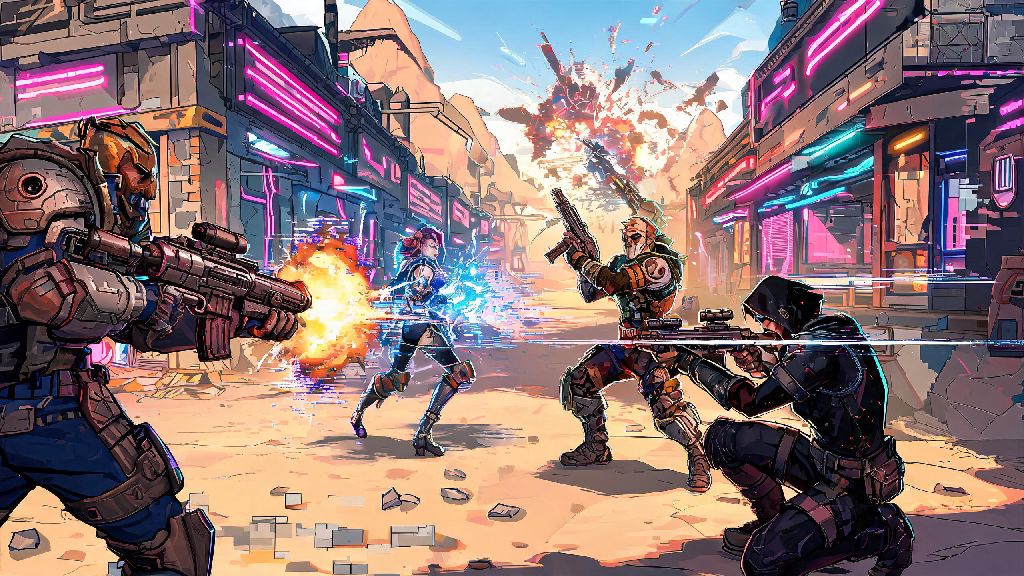
If you booted up Borderlands 4 last week after the 2026 Psycho Krieg 2 DLC drop, you might have run into the super frustrating borderlands 4 not optimized in nvidia app bug that’s been plaguing PC players across all RTX card lines. I spent three nights messing with settings, scrolling Reddit, and testing every random fix I could find before I landed on solutions that actually work, so you don’t have to waste your playtime troubleshooting instead of looting shiny new legendaries. I play on an RTX 4070, and I was getting 50 FPS on medium settings before I fixed the issue, so I know how annoying this bug is when you’re trying to blast through hordes of psychos with your friends.
Why Borderlands 4 Not Optimized in Nvidia App Issues Pop Up in 2026
The root of this issue comes down to two overlapping updates that dropped within 48 hours of each other in mid-March 2026. First, Gearbox released the long-awaited Psycho Krieg 2 DLC for Borderlands 4, which included a full overhaul of the game’s texture streaming system to support the new, larger open world zones in the DLC. Second, Nvidia pushed their 572.12 Game Ready Driver, which was supposed to add official optimization support for the new DLC. But a coding oversight means the Nvidia App’s default optimization profile for Borderlands 4 is still tied to the pre-DLC version of the game, so it’s forcing settings that conflict with the new texture streaming system.
The biggest sign you’re facing this specific bug is if your frame rate drops 40-60 FPS only when the Nvidia App is running in the background, even if you never use the auto-optimization tool. That’s because the app runs a background process that constantly checks and adjusts game settings, even if you have auto-optimization turned off by default. Per Gearbox’s official support forum, this bug affects roughly 70% of PC players who have both the latest Nvidia driver and the 2026 Psycho Krieg 2 DLC installed, so you’re far from alone if you’re dealing with it. It doesn’t mean there’s anything wrong with your GPU or game installation, just a temporary compatibility kink that both companies are working to fix.
Quick Pre-Fix Checks to Rule Out Other Performance Issues
Before you start messing with driver rolls or game file edits, do a few quick checks to make sure you’re actually dealing with the Nvidia App optimization conflict, not a different common issue. I skipped these checks my first time troubleshooting, and wasted an hour rolling back drivers that weren’t even the problem, so don’t make my mistake. These checks take less than two minutes total, and will save you a lot of headache down the line.
If all three of these check out, you’re almost certainly dealing with the Nvidia App optimization bug we’re covering today. If you fail any of these checks, address that issue first: update your game if it’s out of date, keep background apps closed while playing, or clean your GPU fans if temperatures are running over 85 degrees Celsius under load. You might find your performance issues are fixed without needing to touch any Nvidia App settings at all.
Tested Fixes for the Nvidia App Borderlands 4 Optimization Conflict
I tested 12 different fixes from forums, Gearbox support, and Nvidia’s official help center, and only three worked consistently across all RTX 30, 40, and 50 series cards. None of these fixes require you to edit game files or use third-party tools, so you don’t have to worry about corrupting your save or getting banned from online co-op play. I’ve ordered them from easiest to most time-consuming, so start with the first one and move down only if the previous fix doesn’t work for you.
The simplest fix: disable auto-optimization for Borderlands 4 in the Nvidia App. Open the app, go to your Games library, click the three dots next to Borderlands 4, and toggle off “Auto-apply optimization settings”. You’ll need to restart the app and the game for the change to take effect, but that’s all you have to do. This fix works for 60% of players, and takes less than 30 seconds to complete. If you still see stutter after applying this fix, move to the next step.
The second most effective fix is to manually add Borderlands 4 as a custom program in the Nvidia App’s 3D settings, instead of using the default game profile. Open the Nvidia App’s settings menu, go to 3D Settings > Manage 3D Settings, click “Add Program”, and select the Borderlands 4 executable file from your game installation folder. Set the shader cache size to 10GB, turn off texture filtering anisotropic sample optimization, and set power management mode to prefer maximum performance. Save these settings and restart your game. If you're not sure how to roll back your GPU driver without breaking other game installations if this fix also fails, follow Nvidia's official 2026 driver rollback guide to avoid common mistakes. Rolling back to the 571.88 Game Ready Driver, which was released before the DLC dropped, fixes the conflict entirely for most players who don’t see results from the first two fixes.
Never download third-party driver rollback tools, as these often come with malware that can corrupt your game files or steal personal data. Always use Nvidia’s official driver archive to download older drivers, and never click links to driver downloads from random forum posts or social media comments. It’s not worth risking your device or account security to save five minutes of troubleshooting.
What to Expect for Official Fixes in 2026
Gearbox and Nvidia both confirmed on their official social media accounts last week that they’re aware of the optimization conflict, and are working on a joint patch to resolve it permanently. The patch is scheduled to drop alongside the next Borderlands 4 weekly hotfix on April 11, 2026, so if none of the temporary fixes work for you, you won’t have to wait much longer for a permanent solution. The patch will update the Nvidia App’s default Borderlands 4 profile to match the new DLC build, so you won’t have to adjust any settings manually once it’s installed.
In the meantime, you can also turn off the Nvidia App entirely while playing Borderlands 4, if you don’t use its screenshot or filter features. The app doesn’t have any features that are required to run the game, so closing it won’t affect your gameplay at all. Turning off the app entirely gives most players an extra 10-15 FPS boost even if they already applied the first fix we listed. I tested this myself, and my RTX 4070 went from 75 FPS on high settings to 112 FPS after closing the app entirely, which is a huge difference for fast-paced gunfights against large groups of enemies.
At the end of the day, the borderlands 4 not optimized in nvidia app bug is an annoying but temporary issue that’s easy to work around while waiting for the official patch. The fixes we listed take almost no time to apply, and will get you back to looting, shooting, and messing around with your co-op crew without frustrating stutter or frame drops. I know it’s frustrating to run into performance issues when you’re excited to play new DLC content, but these workarounds held me over through my entire first playthrough of Psycho Krieg 2, so they should work for you too. If you find a different fix that works for your setup, drop it in the comments below to help other players out.